Clipchamp

Clipchamp

Clipchamp is a free online video editor that empowers users to record, edit, and share high-definition videos with the help of AI tools. Key capabilities include AI-powered voiceover generation, automatic subtitle creation in over 80 languages, audio noise removal, and access to a vast library of royalty-free stock assets such as videos, images, and music. It is designed for everyday creators, including YouTubers, social media managers, and educators, to produce professional-quality content without requiring expertise. Available as a web application and a desktop app for Windows, with additional premium features accessible through Microsoft 365 subscriptions.

Video Generation
Visit website
Added on
Sep 17, 2026
AI VoiceoverAI SubtitlesScreen RecordingStock Assets4K ExportFree TierWeb EditorDesktop App
Product information

Everything worth knowing about Clipchamp

The complete picture — from everyday features to the technical detail builders and IT folks dig for.

Core features

What it actually does

AI Voiceover Generator
Turn text into lifelike speech for realistic AI voiceovers in global languages with pitch and pace editing.
AI Subtitle Generator
Generate accurate AI captions in over 80 languages, edit style, font, and colors for accessibility.
Screen and Camera Recorder
Record audio, screen, and webcam securely on Windows and Mac devices with unlimited retakes and AI quality tools.
AI Audio Editing Tools
Enhance voice clarity by removing background noise, pauses, and filler words with AI techniques.
Royalty-Free Stock Library
Access high-quality stock videos, images, music, stickers, GIFs, and sound effects for creation.
Technical capabilities
Video Export Resolution
Export videos up to 1080p HD for free or 4K UHD with Microsoft 365 subscription.
Must watch videos
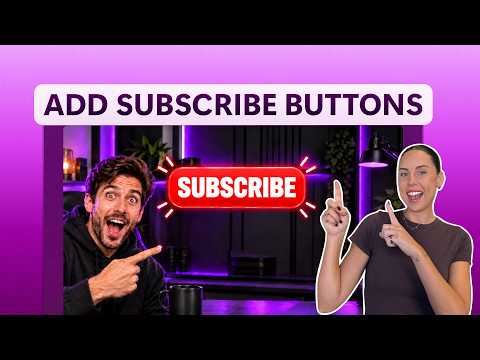
How to add a subscribe button to a YouTube outro
1:52
Tutorial1:52
How to add a subscribe button to a YouTube outro
👉 Try it out here: https://tinyurl.com/mrxwsuua This tutorial applies to Clipchamp for personal accounts. In this tutorial, learn how to quickly add a subscribe button to your YouTube outro using Clipchamp video editor. In just a few clicks, you can create a professional end screen that encourages viewers to subscribe and keep watching your content. So, feel free to try it for yourself through the link above ☝️ Enjoy! 🎉 ------------------------------------------------------------------------------ TIMESTAMPS 00:00 Intro 00:08 How to import a video 00:25 How to add a subscribe sticker 01:24 How to save and export 01:42 Outro Any questions? Ask away in the comments! 😄 ------------------------------------------------------------------------------- 💻 WATCH NEXT How to edit videos like a pro in 4 minutes (2025): https://www.youtube.com/watch?v=lYRWhFey_Hw How to create a split screen video for FREE: https://youtu.be/7dJT_DzMXGE ------------------------------------------------------------------------------- 👉 TRY CLIPCHAMP ONLINE VIDEO EDITOR Use this link to start video editing using the best free editing software: https://tinyurl.com/mrxwsuua 👉 FOLLOW CLIPCHAMP VIDEO EDITOR ON SOCIALS Follow us on TikTok: https://www.tiktok.com/@clipchamp Follow us on Instagram: https://www.instagram.com/clipchamp Follow us on LinkedIn: https://www.linkedin.com/company/clipchamp-pty-ltd/ Follow us on Facebook: https://www.facebook.com/clipchamp/ Follow us on X: https://twitter.com/clipchamp Join the Clipchamp creator community: https://www.facebook.com/groups/clipchampcommunity 👉 SUBSCRIBE TO CLIPCHAMP YOUTUBE CHANNEL https://www.youtube.com/c/clipchampcom Check out all of our video editing tutorial videos. New video editing hacks every week Thanks so much for watching! Paige and Microsoft Clipchamp 💜 -------------------------------------------------------------------------------
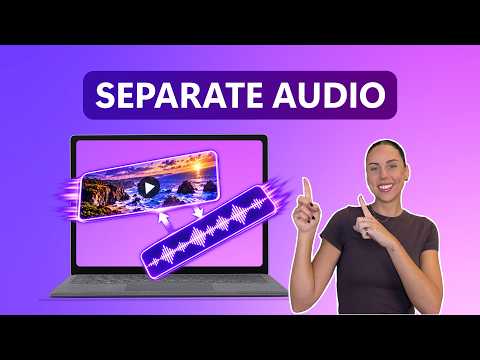
How to separate audio from video
1:38
Tutorial1:38
How to separate audio from video
👉 Try it out here: https://tinyurl.com/mrxwsuua This tutorial applies to Clipchamp for personal accounts. In this tutorial, discover how to separate audio from video using Clipchamp video editor. You'll learn how to detach an audio track from any video so you can edit sound independently. Whether you're editing YouTube videos, social media content, podcasts, vlogs, or gameplay footage, separating audio from video gives you greater control over your edits. So, feel free to try it for yourself through the link above ☝️ Enjoy! 🎉 ------------------------------------------------------------------------------ TIMESTAMPS 00:00 Intro 00:07 How to import a video 00:23 How to separate audio from video option 1 00:45 How to separate audio from video option 2 00:57 How to save and export 01:26 Outro Any questions? Ask away in the comments! 😄 ------------------------------------------------------------------------------- 💻 WATCH NEXT How to edit videos like a pro in 4 minutes (2025): https://www.youtube.com/watch?v=lYRWhFey_Hw How to create a split screen video for FREE: https://youtu.be/7dJT_DzMXGE ------------------------------------------------------------------------------- 👉 TRY CLIPCHAMP ONLINE VIDEO EDITOR Use this link to start video editing using the best free editing software: https://tinyurl.com/mrxwsuua 👉 FOLLOW CLIPCHAMP VIDEO EDITOR ON SOCIALS Follow us on TikTok: https://www.tiktok.com/@clipchamp Follow us on Instagram: https://www.instagram.com/clipchamp Follow us on LinkedIn: https://www.linkedin.com/company/clipchamp-pty-ltd/ Follow us on Facebook: https://www.facebook.com/clipchamp/ Follow us on X: https://twitter.com/clipchamp Join the Clipchamp creator community: https://www.facebook.com/groups/clipchampcommunity 👉 SUBSCRIBE TO CLIPCHAMP YOUTUBE CHANNEL https://www.youtube.com/c/clipchampcom Check out all of our video editing tutorial videos. New video editing hacks every week Thanks so much for watching! Paige and Microsoft Clipchamp 💜 -------------------------------------------------------------------------------
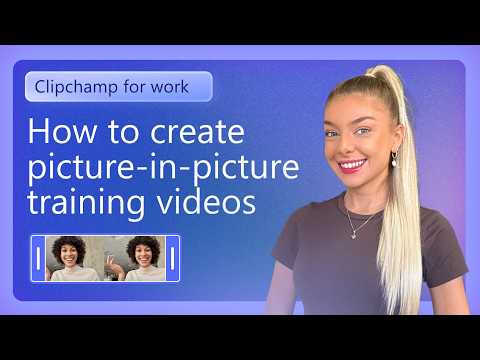
How to create picture-in-picture training videos
1:35
Tutorial1:35
How to create picture-in-picture training videos
Try it yourself here: https://tinyurl.com/4pze42ky This tutorial applies to Clipchamp for work users. Clipchamp for work is available for Microsoft 365 commercial customers. In this tutorial, discover how to create professional picture-in-picture videos. Learn how to overlay a presenter video on top of a recording to create engaging training, product demo, onboarding, and instructional videos. Follow step-by-step instructions to resize, position, and customize your picture-in-picture layout for polished business communications. Try it through the link above. ------------------------------------------------------------------------------ TIMESTAMPS 00:00 Intro 00:12 How to import videos 00:26 How to create a picture-in-picture effect 01:13 How to export and share 01:28 Outro Any questions? Ask away in the comments. ------------------------------------------------------------------------------ TRY CLIPCHAMP FOR WORK Use this link to start video editing for work: https://tinyurl.com/4pze42ky Explore what Microsoft 365 plans include Clipchamp here: https://support.microsoft.com/en-gb/topic/how-to-access-microsoft-clipchamp-with-your-work-or-school-account-8122e9d2-b517-4230-8398-64cdaca9bef2 FOLLOW CLIPCHAMP ON SOCIALS Follow us on TikTok: https://www.tiktok.com/@clipchamp Follow us on Instagram: https://www.instagram.com/clipchamp Follow us on LinkedIn: https://www.linkedin.com/company/clipchamp-pty-ltd/ Follow us on Facebook: https://www.facebook.com/clipchamp/ Follow us on X: https://twitter.com/clipchamp Join the Clipchamp creator community: https://www.facebook.com/groups/clipchampcommunity SUBSCRIBE TO CLIPCHAMP YOUTUBE CHANNEL https://www.youtube.com/c/clipchampcom Thanks so much for watching! Christie and Microsoft Clipchamp for work. -------------------------------------------------------------------------------

Who uses it

Real use cases, no hype
Social Media Content Creation
Edit videos for platforms like YouTube, TikTok, and Instagram.
Tutorial and Demo Videos
Record screen and webcam for instructional content.
Promotional Material
Create promo videos and ads with stock assets.
Vlog Editing
Enhance personal vlogs with AI audio and subtitles.
Educational Content
Make accessible videos with captions for learning.
Gaming Highlights
Edit gaming footage with overlays and effects.
Business Presentations
Produce professional videos for work with brand kit.
What's great
  • Free with core editing features
  • AI voiceover and subtitle generation
  • No download needed for web app
Technical strengths
  • Seamless Microsoft 365 integration
  • AI-powered audio cleanup tools
  • 4K UHD export in premium
Where it falls short
  • 1080p max export on free plan
  • Premium locked behind Microsoft 365 paywall
  • Free stock assets are limited
Technical limitations
  • Lacks advanced editing features
  • Potential browser performance lags
  • Desktop app only for Windows
For technical folks

The deep-dive specs

FAQ

Includes technical Q&A
The free plan allows unlimited video projects and exports up to 1080p HD resolution without watermarks, with access to basic editing tools and AI features.

Traffic Insights

Monthly Visits

—

October 2026

Growth Rate

0%

vs last month

Dominance

0%

in Video Generation

Top Country

—

Top Countries Breakdown

—

Growth Trend

Stable

Traffic has remained stable.

Honest pricing

No sneaky tiers, no “contact sales”

Here's who each plan is actually for — and where the hidden charges might hit.

Premium
Most picked
$365/mo

Individuals

  • Export up to 4K UHD
  • premium stock assets
  • single brand kit
  • premium filters and effects.
View Full Plans & Pricing on Clipchamp

Official pricing, checkout, and plan upgrades are handled directly on clipchamp.com.

Reviews

What the internet actually thinks

Data refreshed weekly. No paid placements.

Trustpilot
Not reviewed yet
G2
G2
Not reviewed yet
C
Capterra
Not reviewed yet
Product Hunt
Not reviewed yet
COMMUNITY COMMENTS

Leave a Comment

Help others make informed decisions. Your honest feedback shapes the community's understanding of this tool.

Tips for commenting

  • •Be specific about features you used
  • •Share real use cases and results
  • •Mention both pros and cons
  • •Keep it honest and constructive
to leave a comment

Your comment is published immediately.

Filter:
Sort:

No comments yet

Be the first to share your experience with this tool.

Alternatives

Not quite the right fit?

Here's what else is out there.